How to resize one photo for every social media size
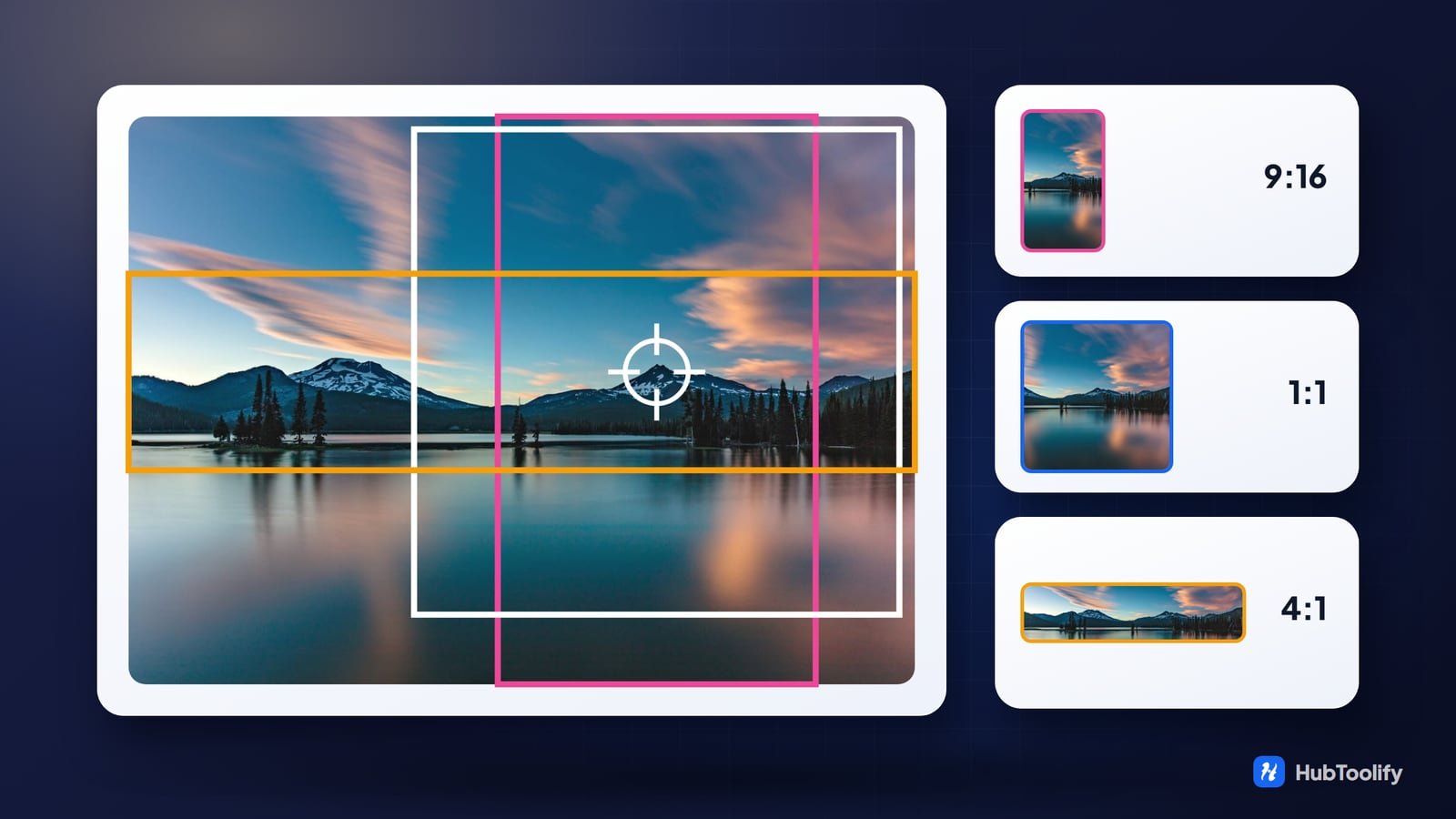
An Instagram Story is 9:16. A LinkedIn cover is 4:1. That is 0.5625 against 4.00 — the widest shape a platform asks for is seven times the narrowest — and the picture that has to fill both of them is one picture.
Resizing is the easy half. The hard half is that something is always thrown away, and deciding what.
Twenty-five sizes, nine shapes

There is a second thing hiding in that chart. Facebook wants 1200 × 630 for a shared link. LinkedIn wants 1200 × 627 for a post. An Instagram landscape post is 1080 × 566. Those are 1.905, 1.914 and 1.908 — three different pairs of numbers for what is, to within a rounding error, exactly one shape.
Nobody remembers that correctly, and nobody should have to. It is the whole argument for choosing sizes off a list.
A centre crop is a coin toss

A centre crop assumes the subject is in the middle of the frame. In a portrait photograph it almost never is — the face sits high, roughly a third of the way down, which is where every convention of portraiture and the rule of thirds both put it.
So a 4:1 cover cut from the centre of a 2:3 photograph lands on a collar. Not occasionally: reliably, because the geometry does not vary.
Social Media Image Resizer fixes it with one click. Mark the point that has to survive and every size is cut around it instead of around the middle.
One detail in how that is built is worth noticing. The clickable stage takes the picture's own aspect ratio rather than sitting in a fixed square. If the box were square with the photograph letterboxed inside it, every coordinate you clicked would be measured partly against empty space, and the focal point would land somewhere other than where you pointed.
When a crop is the wrong answer
Sometimes the shapes are too far apart for cropping to be sensible at all.
A 1.91:1 photograph into a 9:16 story keeps 29% of its width. That is not a crop, it is a core sample — a vertical strip through the middle of a picture that was composed horizontally.
For that case there are two other fills:
- Blurred fill puts the whole picture inside the frame and fills the space with a blurred, slightly darkened copy of itself.
- Plain bars does the same with a flat colour.
The difference between them matters more than it sounds. Flat bars look like something went wrong. Bars made out of the photograph look like a decision — which is why every platform that auto-fits a mismatched image does exactly this, and why it is offered here as a first-class option rather than a novelty.
The rule of thumb: crop when the target's shape is close to the source's, and fill when it is not.
Two things it will not do
It does not upscale. A 600 px picture put into a 2048 px banner is still a 600 px picture, stretched. The sizes are the canvas, not a promise about detail — start from the largest original you have, because nothing downstream can add what was never captured.
It does not know what is in the picture. There is no face detection: you place the point. One click, and it applies to every size in the batch.
What comes out

Each card in the size grid draws the aspect ratio it stands for, because a ratio is the thing being chosen and 1080 × 1350 is not a shape anybody pictures.
Pick as many as you need, press the button, and every one is rendered in the tab. Download them one at a time, or take the lot as a zip with the platform, the name and the dimensions already in each filename.
JPEG, PNG or WebP, with a quality slider on the two lossy ones. If you choose JPEG, note that it has no alpha channel — so the background colour is laid down before the picture rather than composited afterwards, because a transparent PNG dropped onto an empty canvas flattens to black rather than to white.
The rest of the toolbox
For one crop rather than fifteen, Image Crop gives you the box and the handles. Image Resizer hits an exact pixel size, and Image Compressor brings the weight down afterwards — worth doing, since a batch of 1080-wide JPEGs adds up quickly.
For the picture itself: Background Blur puts depth behind a subject and Image Format Converter moves the set to WebP once the shapes are settled. Open Graph Generator writes the tags that make the 1200 × 630 one actually appear when the link is shared.
They are all in the full tool directory, and every one of them runs on your own machine.


0 comments
No comments yet. Be the first to say something.